How to Use the AI Relationship Chart Generator: Better Drafts from Text
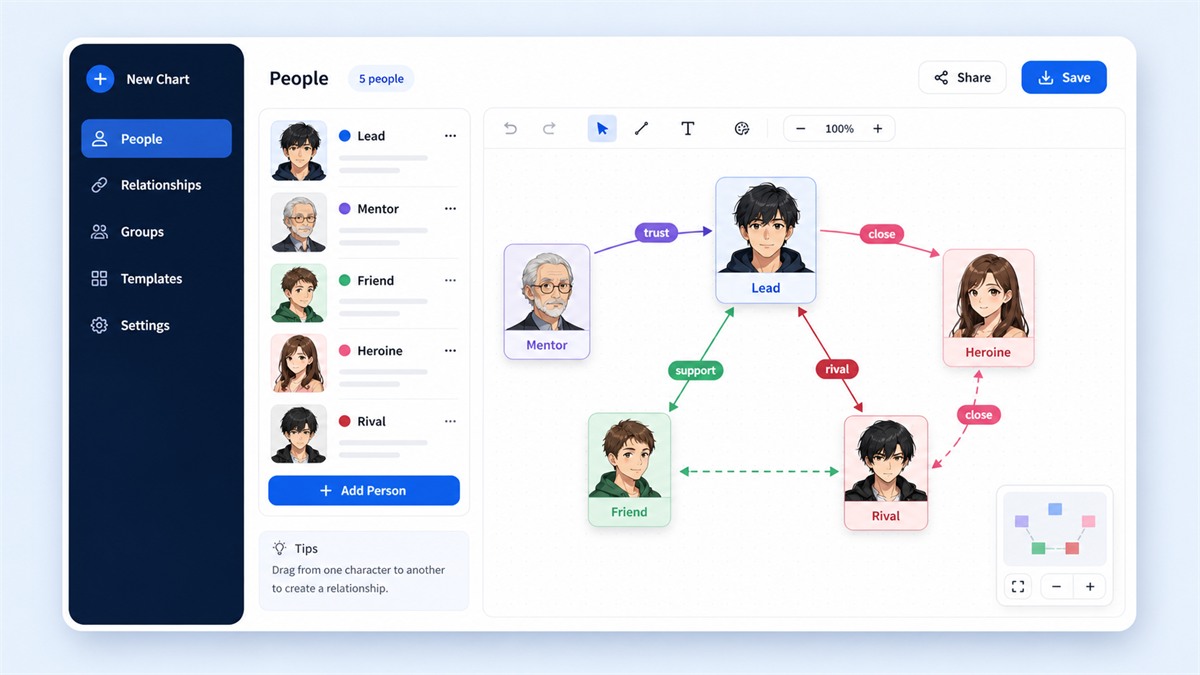
Relationship Chart Maker includes an AI relationship chart generator: paste text, and it pulls out the characters and their relationships and builds a first draft of the chart. If you already have setting notes, a plot summary or meeting minutes, that is much faster than placing every person by hand. This guide shows how to get the most accurate draft and how to finish it in the editor.
What the AI generator does
On the AI chart page, you paste text and press generate. The AI then:
- picks out the names of the people in your text (for example “Taro”, “Manager Sato” or “the Demon King”),
- infers how they relate (“Taro and Hana are childhood friends” becomes a line labeled childhood friends),
- adds relationship labels and lays the chart out.
The result opens in the regular editor, so you can add or remove people, fix labels and rearrange the layout just like a hand-made chart. Think of the AI as a drafting assistant: it starts the chart, and you finish it.
How to write the input
The same story can give very different results depending on how you write it. The key is to state each relationship explicitly.
A good input
Sota is a high-school sophomore. Mitsuki, Sota’s childhood friend, has a crush on him. Sota’s older brother Hayato tutors Mitsuki. Rei, a transfer student, grew up in the same care home as Hayato and treats Sota as an enemy.
An input that works poorly
A coming-of-age drama with Sota, Mitsuki, Hayato and Rei. Their feelings cross and eventually collide.
The second version has the names but no clues about who connects to whom, so few lines get drawn. A list of facts, like setting notes, works better than a mood-setting blurb.
Four tips: use one consistent name per character; write one relationship per sentence (“A is B’s brother”); mention the most important characters first; and for casts of ten or more, split the text into paragraphs by faction.
Step by step
- Paste your text. Put setting notes or a plot summary into the text box on the AI chart page. If the text is very long, keep the parts where relationships matter most.
- Check the draft. Generation takes a few seconds. First check who is missing or extra: delete minor characters that were picked up, and add important ones that were missed.
- Finish in the editor. Tidy the labels, color the groups, and put the main character in the middle. The design tips apply directly.
When the AI generator helps, and when it doesn’t
- Good fit: turning existing setting notes or plot into a chart; making an NPC map from a TTRPG scenario intro; making a stakeholder chart from meeting notes or a handover memo; drawing a personal overview of a long novel.
- Poor fit: ideas that exist only in your head (write them down first); a simple relationship with just two or three people (faster by hand); a final, pixel-perfect layout (expect to edit).
FAQ
Is the AI relationship chart generator free?
Yes, you can try it free once a day with no sign-up. Premium raises the limit to 10 generations per day. See pricing for current plans.
What happens to the text I enter?
The text is sent to the AI service only to generate the draft. See the Privacy Policy for details. For unpublished or sensitive material, you can leave out anything you do not want to include.
The generated chart looks wrong. What should I do?
The AI is not perfect. Nicknames are a common cause: “Mr. Yamada” and “Taro Yamada” may become two people. Make the names consistent and generate again, or merge them in the editor.
Paste your setting notes and see the first draft in seconds.
Try the AI Chart Generator